Hey there, if you’ve landed here, chances are you’re either testing out an Industrial Panel PC (IPC) and stuck on how to connect it to your factory gear, a robot arm, a sensor network, or even an old HMI, or you’re an ops lead tired of troubleshooting flaky connections that kill production time. As someone who’s been selling IPCs for over 8 years—helping folks across automotive, food and beverage, and packaging lines get their setups right—I’ve seen way too many teams skip a small step that turns a simple connection into a 2-day headache. Today I’m breaking this down like we’re chatting over a coffee in the break room, no fancy tech jargon (or at least, I’ll explain it when I use it) and no useless fluff. Industrial Panel PC
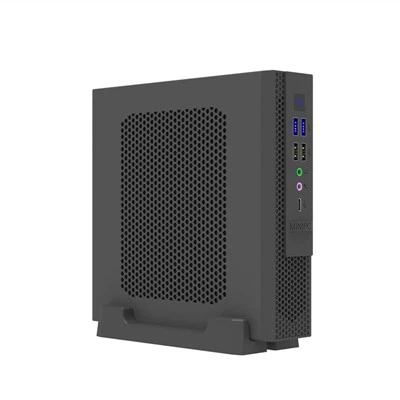
First off, let’s get one thing straight: Industrial Panel PCs aren’t your consumer laptop. Yeah, they look like a big tablet, but they’re built to live on a factory floor—so their ports are purpose-built, not just for plugging in a charger and a mouse. Most entry-level IPCs we ship have the basics: a handful of USB ports (usually 2-4, some are industrial-grade, so they can handle rough plugging), an Ethernet port (1Gbps is standard, 10Gbps if you need to pull big data fast), and often a couple of serial ports (RS232/RS485—super common for older factory gear that’s been around longer than half the folks working there). Mid-range and high-end models might throw in HDMI for external monitors, WiFi 6 for wireless setup, or even CAN bus for robot and motor control. The first rule? Check your IPC’s specs before you buy anything else. We always include a quick “ports at a glance” sheet with every unit we ship, and if you lose it, our support team can shoot over a PDF in 2 minutes—no hoops to jump through. That’s step zero, people. Don’t skip it. You’d be shocked how many times someone shows up with a USB-C only cable for an IPC that only has old-school USB-A ports.
Now, let’s split this into the two big connection types: wired (the reliable workhorse 99% of factories use) and wireless (for when you need flexibility, like moving IPCs between lines or connecting to mobile robots). Let’s start with wired because that’s where most issues happen.
First, Ethernet. This is the bread and butter for connecting an IPC to PLCs (Programmable Logic Controllers), scanners, servers, or even other IPCs. The wrong cable here can mean lag that messes up a packaging line, or no connection at all. For most factory floors, we recommend Cat 6a cables—they’re shielded, so they don’t pick up that electrical noise from motors and welding machines that makes consumer cables act weird. Cat 5e works too, but if you’re transferring data over 50 feet or more, Cat 6a is non-negotiable. A quick pro tip: label both ends of every Ethernet cable. I’ve been on a job where a maintenance tech swapped two cables at 2 a.m. and the whole line went down until we figured out the mix-up. 5 minutes of labeling saves 4 hours of downtime.
How do you actually set it up? Plug one end into the IPC’s Ethernet port, the other into the device you’re connecting to. Now, if it’s a direct connection to a PLC or another IPC, you might need a crossover cable, but most modern gear uses auto MDI/MDI-X now—meaning straight cables work, no need to hunt for that old crossover cable you stashed somewhere. Once plugged in, on the IPC, go to Settings > Network & Internet > Ethernet (Windows) or Network Manager (Linux, since a lot of IPCs run Linux for stability). Set it to “IP assigned automatically” if your network uses a DHCP server (which most factory networks do, just make sure the IPC is on the same subnet as the devices you’re connecting to—ask your IT guy, he’ll know what that means), or assign a static IP if you need a fixed address (good for servers that always need the same spot). If you still don’t see a connection, check the link lights on the port—most IPCs and devices have a tiny green light that blinks when data is flowing. No light? Try a different port on either the IPC or the other device, or swap the cable. 9 times out of 10, it’s the cable.
Next up: serial connections (RS232/RS485). These are the old reliables for connecting older gear—think barcode scanners, weigh scales, or old HMI panels that won’t quit. RS232 is point-to-point, so it only connects two devices, while RS485 lets you connect up to 32 devices on one cable, which is perfect for sensor networks spread across a line. Here’s where a lot of folks mess up: RS485 needs a termination resistor at the end of the cable run. Skip that, and you get signal reflection that makes data drop. We include a small 120-ohm resistor with every IPC that has RS485 ports, so just plug it into the last device on your chain. As far as wiring, RS232 uses a 9-pin D-sub, so make sure your cable has the right pins matched (pin 2 to 2, 3 to 3, 5 to 5—for the laypeople, that’s TX to RX, RX to TX, ground to ground). RS485 uses two wires, A and B, so make sure you don’t swap them. Once plugged in, you’ll need to set the right baud rate, data bits, parity, and stop bits on both the IPC and the device. Most of these settings are printed on the device’s label or manual, so grab that before you start—changing one number can make the whole connection dead. I’ve had a guy spend 3 hours troubleshooting a scale connection once because he set the baud rate to 9600 instead of 19200. Oops.
USB connections are the easiest, but don’t let that fool you. Consumer USB cables are fine for mice and keyboards, but if you’re connecting something that draws a lot of power—like a high-powered barcode scanner, a thermal printer, or a USB-based sensor—you need industrial-grade USB cables. Regular cables can drop power or get interference from factory machinery, leading to random disconnects mid-scan or print. Also, don’t daisy-chain too many USB devices. IPCs have limited power and bandwidth, so 3-4 devices max on a single USB hub (and make sure the hub is powered, not just bus-powered). If you’re connecting a USB-based PLC, just plug it in, install the driver (most IPCs auto-install them, but sometimes you have to grab it from the device’s website), and you’re good to go. Easy, right? Wait, no—don’t use extension cables longer than 10 feet for USB, or you’ll lose signal. If you need more length, use a USB extender over Cat 5e, which we also sell as an add-on.
Now, wireless connections. This is where people get fancy, and honestly, it’s great for mobile setups or areas where running cables is a pain, like between a dock door and a forklift. Most modern IPCs have WiFi 6 or WiFi 6E built-in, and some have Bluetooth 5.0 for short-range stuff like connecting a wireless barcode scanner. But here’s the catch: factory WiFi is not your home WiFi. Your home WiFi works for Netflix, but on a factory floor with 50 machines running, that same WiFi can be choppy because of all the electrical noise. If you need reliable wireless for critical processes, go for a WiFi 6 industrial access point, not a consumer one. Set it to a 5GHz band if you can—it has less interference than 2.4GHz, though 2.4GHz is better for longer ranges (up to 150 feet vs 50 feet for 5GHz). To connect on the IPC, just go to WiFi settings, pick the network, enter the password, and you’re in. For Bluetooth, it’s the same as your phone—put the device in pairing mode, find it on the IPC, and connect. Just remember, Bluetooth has a max range of 30 feet, so don’t try to connect a scanner across a warehouse with it.
Wait, what if you’re connecting to a non-PC device that’s not on the list? Like a robot arm, a vision system, or a conveyor belt controller? Most of the same rules apply, but you need to check the device’s communication protocol. For robots, that’s often Modbus, EtherNet/IP, or PROFINET. For vision systems, it’s usually GigE Vision over Ethernet. Our IPCs come pre-configured with drivers for all the common industrial protocols, so you don’t have to go hunting for them. A lot of people ask if they need a special software to connect these—no, not really, we include free software tools (like Modbus Poll or EasyIO) with every IPC to test connections, so you can make sure data is flowing before you put it on the line.
Let me throw in a couple of common mistakes I see every single week, to save you the headache. First: not grounding your IPC and connected devices. Factory floors have static electricity and electrical noise that can fry ports or mess up signals. Make sure all devices are on the same ground line—no separate circuits for different gear. Second: overcomplicating things. You don’t need a 10Gbps Ethernet port for a simple scale connection, and you don’t need a CAN bus if you’re just connecting a mouse. Match the connection to the device, no more. Third: skipping testing during off-hours. Don’t plug in your new IPC at 7 a.m. when the line starts running. Test all connections at night or on the weekend, when you can fix issues without costing the company money.
If you’re still confused, or you’re not sure which ports or cables you need, we’re here to help. We don’t charge extra for technical support—anytime you buy an IPC from us, our team is on call to walk you through connection steps, send you the right drivers, or even help you troubleshoot if something’s not working. We’ve worked with factories of all sizes, from small bakeries with 2 lines to big auto plants with 100, so we’ve probably seen your exact issue before. No runaround, no hidden fees, just actual people who know this stuff. I’ve been in the game long enough to know that bad connections equal lost production, and that’s the last thing anyone needs. If you’re ready to grab an IPC and get it set up, or just have a question about what gear will work for your line, reach out to our team to talk through your needs and get a quote that fits your budget.

At the end of the day, connecting an IPC isn’t rocket science—it’s just about using the right cables, checking the specs, and not overcomplicating it. Skip the fancy jargon, label your cables, test everything ahead of time, and you’ll be up and running in no time. If you run into a snag, we’re only a call or email away. Let’s get your line moving smoothly.
Mini ITX Motherboard References:
Industrial Ethernet for Factory Automation, 2023, Automation World
RS485 Communication Basics for Industrial Applications, 2022, Control Engineering
WiFi 6 in Industrial Environments, 2024, Industrial IoT Now
IPC Port and Protocol Compatibility Guide, 2023, (Our Company) Internal Technical Documentation
Shenzhen HJS Technology Group
Shenzhen HJS Technology Group is one of the most experienced industrial panel pc manufacturers and suppliers in China, featured by quality products and good service. Please rest assured to buy CE approved industrial panel pc made in China here from our factory. For price consultation, contact us.
Address: F10, Wanhe Technology Building C, No. 7 HuiTong Road, Fenghuang Street, Guangming New District, Shenzhen. China.
E-mail: info@hjs-pc.com
WebSite: https://www.hjs-pc.com/
